Most advice about Bible search stops at the input box.
Type a word, get a list, tap a verse. That is the whole story for a lookup — you wanted one verse and you found it.
But study rarely ends after one verse. You search faith NEAR/5 works, and 200 results come back. Somewhere in that list are the eight verses you actually want, and now you have to get them out of the app: into a note, a message to someone, a handout, a talk outline.
That second half — working with the list after the search — is where most Bible apps quietly fall apart. Here is how it works in this one, in the order you would actually use it.
The list arrives grouped by book
Results are grouped by book, in canonical order, with a sticky header that follows you down the screen.
Each header reads like this:
John (12, 1–12)
Twelve hits in John, sitting at positions 1 to 12 in the list. That is more information than it looks like: the count tells you where the weight of your query landed, and the position range tells you how much of the list the book occupies before you scroll into it.
Tap the header itself and the group folds. The little arrow flips from ▾ to ▸, and there is a single control that expands or collapses every group at once, which is the fastest way to survey the shape of a 200-result list: collapse all, look at the counts, then open the two books worth reading.
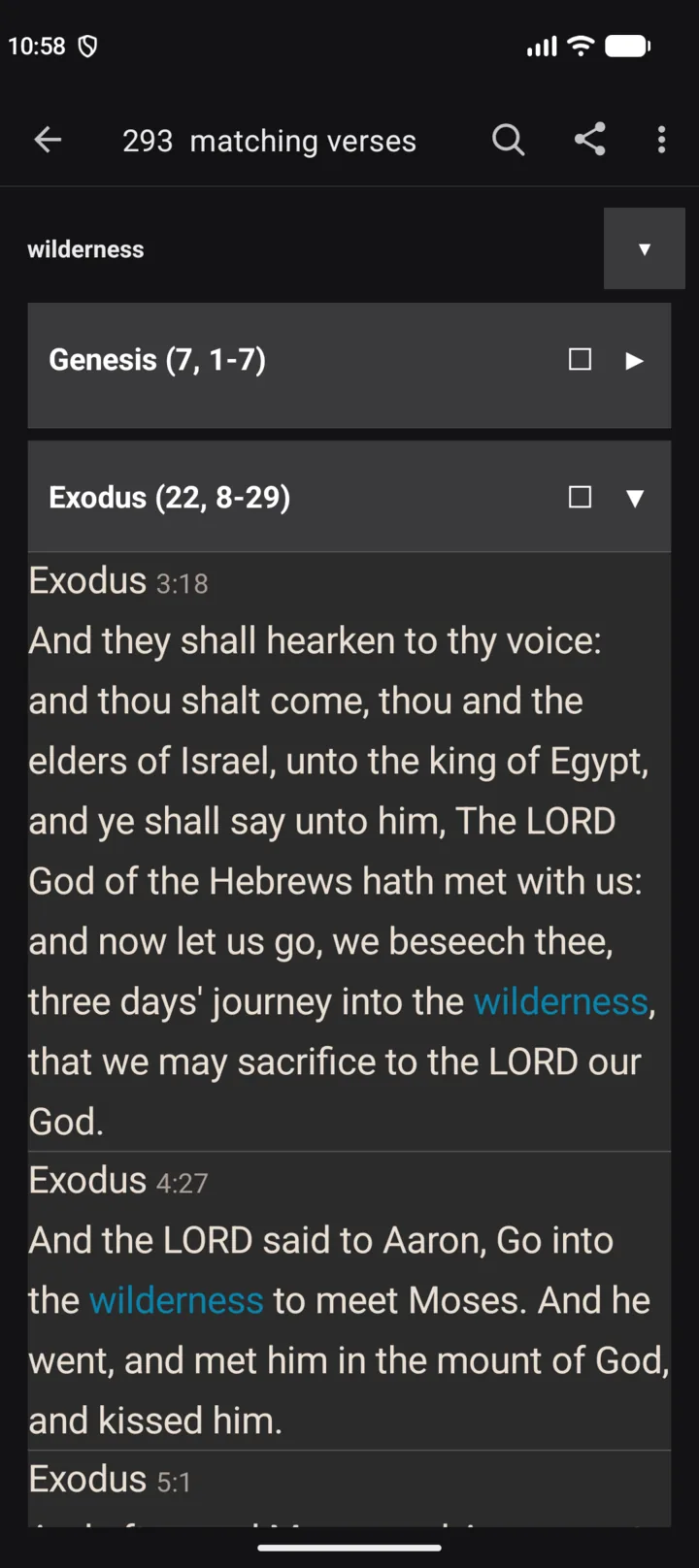
A search for wilderness: 293 hits, Genesis folded down to seven, Exodus opened to twenty-two. The count and the position range sit on the header, the checkbox beside them takes the whole book, and the matched word is marked where it falls.
If the grouping is not helping — a query where you want one continuous list in order — the overflow menu has a toggle that flattens it. It reads Hide Grouping when you are in the grouped view and Show Grouping when you are in the flat one, and it is remembered for your next search, not just this one.
Selecting: one verse, one book, or everything
Long-press a single verse and the screen switches modes. A selection bar appears at the top with a count, and the verse you pressed becomes a selected row. Every subsequent tap adds or removes a verse rather than jumping to it.
From there, three ways to select, in increasing order of ambition:
One verse at a time. Tap to toggle.
A whole book. Every group header carries a checkbox on its right edge, and it is tri-state:
- ☐ nothing in this book is selected
- ▣ some of it is
- ☑ all of it is
One tap on ☑ takes every hit in that book. Tap again and it releases them.
There is a small piece of deliberate design here worth noticing: selecting a group does not expand or collapse it. You can select all of John while John is folded shut, which is exactly what you want when you are working from the counts rather than from the verses.
Everything. Select All in the toolbar takes the whole list. It also works while every group is collapsed — and when your selection is entirely hidden inside folded groups, the selection bar drops the verse reference it would normally show and just displays the count, so you are not left guessing what is selected.
To undo, Clear sits at the front of the selection bar, and it works even when nothing selected is currently visible.
What you can do with a selection
The selection bar carries the actions that make sense for a group of verses, not just one:
- Locate — jump to the passage in the reader
- Share — plain text, as one block
- Share with image — send the verses as a card instead
- Copy — selected verses to the clipboard
- Copy All — everything in the list, whether selected or not
One detail that saves a lot of retyping: copying keeps your selection. Copy, then share, then copy again with a different set of verses — the selection only clears when you press Clear or dismiss the selection bar yourself. Apps that drop the selection after a copy make you re-tap twelve verses to send the same passage to a second person.
Bible order, or the order you tapped
This is the setting that decides whether a list is a set of verses or a sequence, and it is one checkbox in the results overflow menu: Preserve selection order. It is off by default.
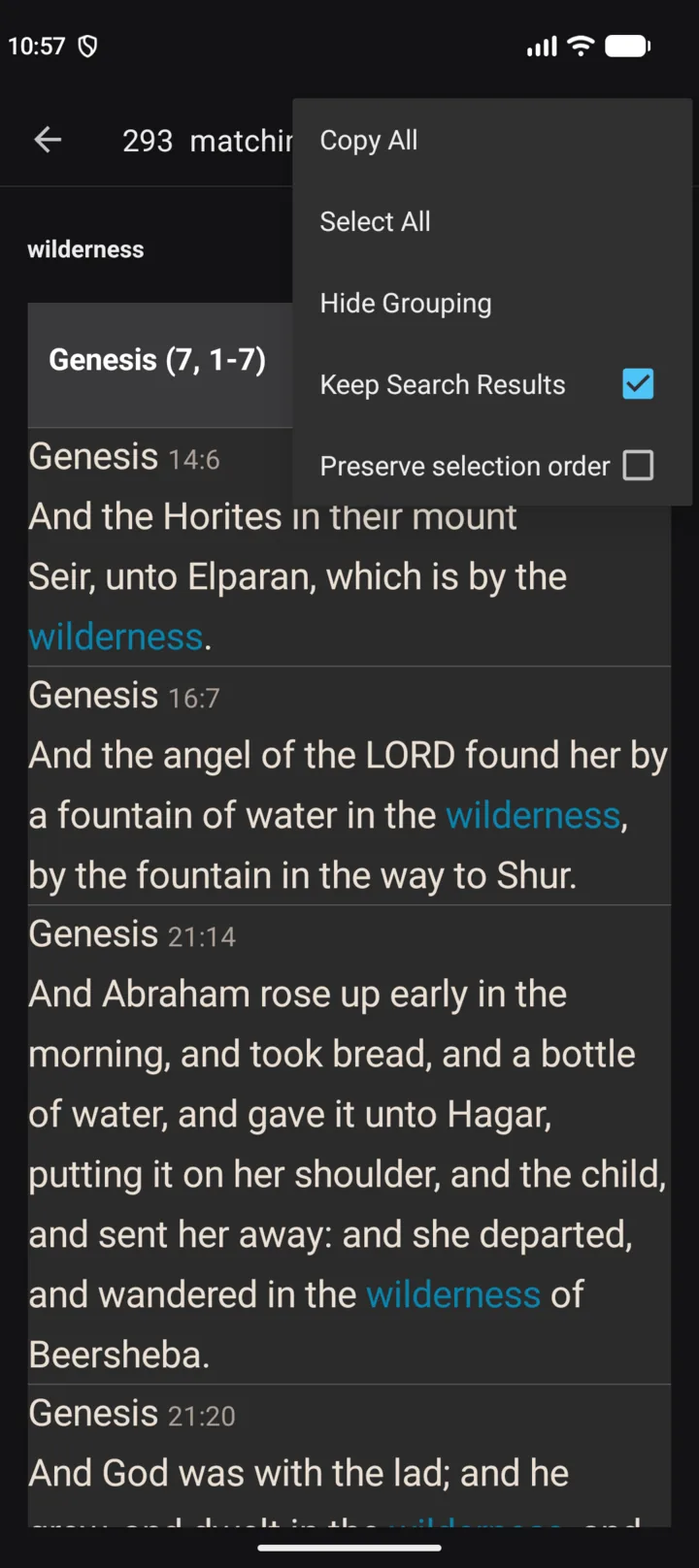
The results overflow menu as it arrives out of the box: Keep Search Results ticked, Preserve selection order not. Both are plain checkboxes — no Apply button, no restart, and the next copy follows the new state.
Off — verses come out in canonical order: Genesis before Psalms, Matthew before John, chapter and verse ascending. Twelve scattered taps become a tidy reference list. This is what you want for a handout, a footnote, or anything someone else will read.
On — verses come out in the order your finger made them. Tap Isaiah 53, then Romans 8, then Psalm 22, and that is the order of the output. This is what you want when the point is the movement — a talk that opens with the wound and closes with the promise, or a message to a friend where the last verse is the one that should land last.
Two things it does not do, both worth knowing:
- It never changes the order on screen. The list stays canonically sorted; only the output respects your taps.
- It does not touch a single-tap jump to the reader. Preserving order is about batches, not navigation.
Because it is a checkbox rather than a modal, you can leave it on for a season of study notes and turn it off the day you need a clean reference list.
Coming back to the list
One more switch decides whether this whole workflow survives a single tap, and it is the one most people never notice.
Keep search results lives in the results overflow menu. It is free, and it is on by default.
On — tapping a result opens the reader with the results list left behind it on the back stack. Read the passage, press Back, and you are exactly where you were: same list, same scroll, same selection. Tap the next result and keep going. This is the mode study wants, because a long list is a place you return to eight times, not a page you visit once.
Off — the list closes behind you. Tapping a result finishes the list screen and opens the reader with the stack cleared, so Back takes you to the search screen and the results are gone. That is the right behaviour when you wanted one verse and you are finished.
There is a second, less visible half to the switch. With it on, starting a new search clears the old result screen off the stack and reloads that same screen with the new query — so ten searches in a row leave you with one results screen, not ten piled up behind the reader. With it off there is nothing to clear, because each list already closed itself on the way out.
Which is a longer way of saying that the toggle is not only about the Back button. It decides whether the results list is a place you work in or an errand you finish.
The query is explained above the results
Worth noticing if you use operators: the results screen restates your query in plain English.
grace NEAR/5 faith becomes "Showing verses where grace appears near faith." (light OR lamp) NOT dark becomes "Showing verses about light, excluding dark." Anything else falls back to "Showing verses matching: …".
That line is the fastest way to catch a query that did not mean what you thought — the operator that swallowed a term, or the parenthesis you forgot.
A worked example
Say you are preparing a short study on faith that produces something.
faith NEAR/5 works NOT doubt— proximity keeps the two words in the same sentence rather than the same chapter, and NOT removes the verses you are not discussing.- Collapse all groups and look at the counts. If James is where the query is concentrated, that is a finding, not just a list.
- Expand James, tap ☑ on the header, then re-open the other books and pick two verses each by hand.
- Leave Preserve selection order on if your outline builds an argument; turn it off if you are sending references to someone else.
- Copy once, paste into your notes, then Share the same selection without re-selecting.
The whole thing takes about a minute, and it is the difference between a search you read and a search you used.
What the search itself understands
A short reference, since the list is only as good as the query:
faith hope— both words, in any form. Unquoted terms are AND-ed.pray— matchespray,prayer,praying, because unquoted words match as prefixes."love thy neighbour"— an exact phrase, in order.faith OR hope OR love— any of them.faith NOT hope— exclude a word.faith NEAR/5 works— within five words. The NEAR button writes/5and steps the distance on repeated taps; NEAR takes two individual terms only, and refuses to nest inside OR.- Parentheses control the order of operations: NEAR binds tightest, then NOT, then OR.
Advanced queries — anything using OR, NOT or NEAR — are limited on a free account, and topic queries are exempt from that limit. Plain keyword and phrase searches are never limited. You can raise the size of the result list in Settings → Others if long queries are being cut off, and change the colour used for the matched words in Settings → Colours & Eye Comfort → Search Result Highlight Color.
The results overflow menu also carries a Keep search results switch, covered above — it is what makes returning from the reader land you back on the list instead of the search screen.
If the first half — getting to the right list at all — is where you get stuck, the companion piece on finding a verse quickly in the KJV covers the three ways in.